Set up Jupyter Functions For Excel add-in in Excel
To Install server package in JupyterHub, please refer to: Github jupyterexcel Setup Guide
1. Install the manifest
In Excel for Windows, install the JupyterForExcel add-in from the Microsoft Store(It is still in pending approval in microsoft store), or use the shared-folder method below.
For using http://jupyterexcel.com as server, download manifest.xml and save it as an .xml file. For your own server, use the manifest provided by your administrator.
The shared-folder method below is for testing an add-in in Excel on Windows. You can setup JupyterForExcel in your environment and it will generate this manifest.xml
Step 1.1: Share a folder on your network
- Open File Explorer and find or create the folder you want to use for your add-in manifest
.xmlfiles. - Right-click the folder and select Properties.
- Go to the Sharing tab and click Share.
- Add yourself and any required users or groups, ensuring they have Read/Write permissions, then click Share.
- Copy the full network path (UNC path, such as
\\YourMachineName\FolderName) displayed in the confirmation screen. - Place your add-in's manifest
.xmlfile inside this shared folder.
Step 1.2: Configure trusted add-in catalogs in Excel
- Open Microsoft Excel and create or open a workbook.
- Go to File and click Options.
- Select Trust Center, then click Trust Center Settings....
- Select Trusted Add-in Catalogs from the sidebar.
- In Catalog Url, paste the full network path to the shared folder. It is the shared folder, not the manifest.xml file
- Click Add catalog.
- Check Show in Menu for the newly added catalog.
- Click OK to save, close all dialog boxes, and restart Excel.
Step 1.3: Insert your add-in
- In Excel, go to Home > Add-ins > Advanced. In versions with the older menu, use Insert > My Add-ins.
- Select the SHARED FOLDER tab at the top of the dialog box.
- Choose your add-in and click Add to load it.
Reference: Microsoft instructions for sideloading Office Add-ins on Windows from a network share.
2. Enter your access token
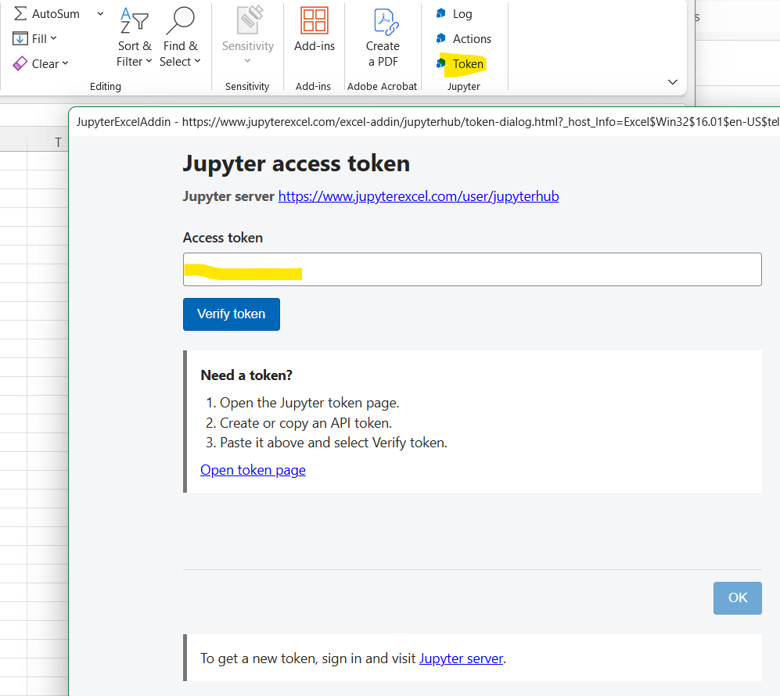
In the Home ribbon, click Input Access Token (shown as Token in the screenshot).
In the dialog box, enter your access token, or get a new token by following the link in the dialog box or visiting https://jupyterexcel.com/hub/token.
3. Try a formula
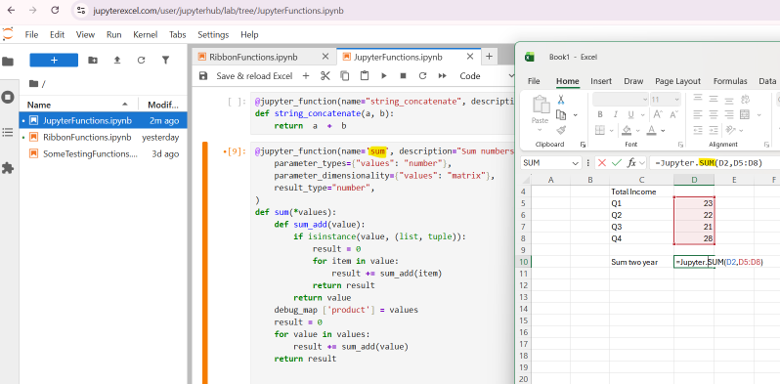
You can add a function such as =Jupyter.Sum(1, 2, 3), or a formula similar to the following example.
4. Add or update a function
Log in at https://www.jupyterexcel.com/. If you add a new function, the Jupyter namespace will be added automatically.
Open a notebook page, modify a function or ribbon function, and click Save the notebook.
Close Excel and reopen it. Your newly added function will be loaded into Excel.
5. Try a ribbon action
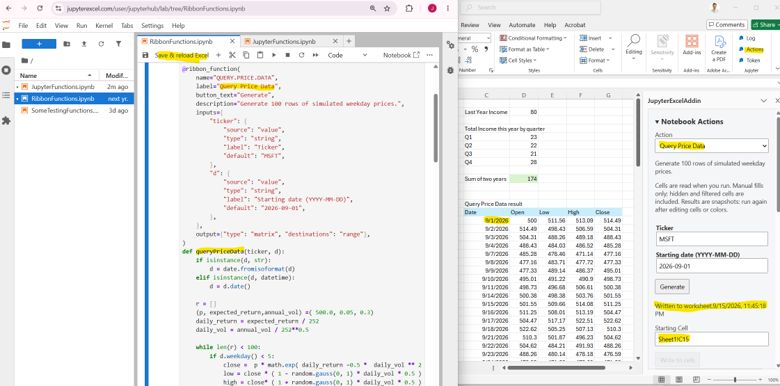
For the ribbon, you can test the Query Price Data function as shown below.