A familiar formula.
Your Python behind it.
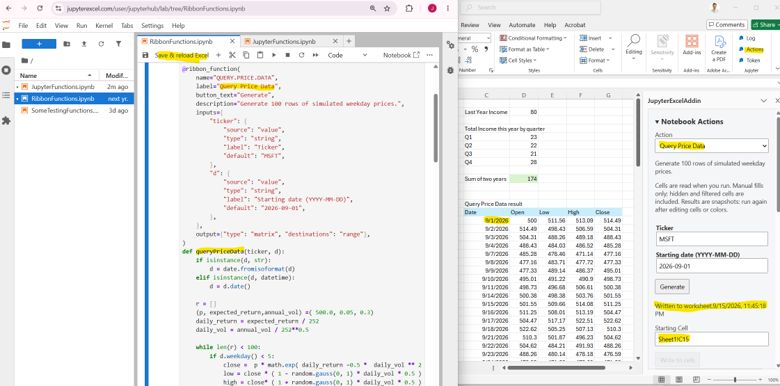
Expose a notebook function with @jupyter_function, then call it from a worksheet. Pass numbers or cell ranges and use the returned result in your workbook.
=Jupyter.Sum(1, 2, 3)
PYTHON NOTEBOOKS. EXCEL WORKBOOKS.
Write your logic in Python. Use it in an Excel formula. JupyterForExcel connects the notebook you build with the spreadsheet you work in.
Custom formulas / Notebook actions / JupyterHub
from jupyterexcel import jupyter_function
@jupyter_function
def add_tax(amount, rate):
return amount * (1 + rate)| A | B | C | D | |
|---|---|---|---|---|
| 1 | Item | Amount | Tax rate | Total |
| 2 | Supplies | 100 | 8% | 108.00 |
| 3 |
Illustrative formula example. Try the connected add-in in Excel.
THE ADD-IN IN ACTION
Two ways to use your notebook in Excel.
Expose a notebook function with @jupyter_function, then call it from a worksheet. Pass numbers or cell ranges and use the returned result in your workbook.
=Jupyter.Sum(1, 2, 3)
Use the Actions pane for tasks that need inputs and tabular output. The Query Price Data example generates simulated price data and writes it to the selected starting cell.
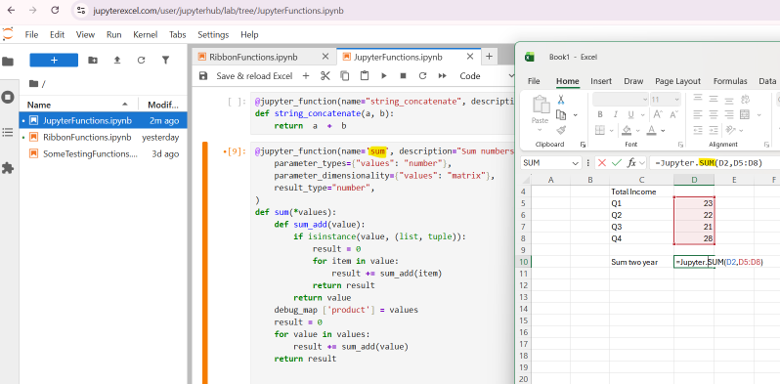
Explore the ribbon example
GET STARTED
Download the demo manifest and follow the setup guide to load it in Excel for Windows.
Download manifest.xml ↗Sign in to JupyterHub, then enter your access token using the Token command in Excel.
Open JupyterHub ↗Call a notebook function from a cell, or open Actions to run the ribbon example.
Follow the demo ↗MAKE IT YOUR OWN
Install the Python package and connect the add-in to your own deployment. Choose a formula namespace and keep your calculation logic in notebooks.
Source code & server setup ↗pip install jupyterexcelFor the Office.js features shown here, use release 0.1.0 or later when available. Check the repository for the current release.